
In short
- A laser cuts only along vectors (SVG, DXF, Illustrator AI). A PNG or JPG is fine for engraving, but for cutting it has to be vectorized first.
- Logos, lettering, line art and silhouettes vectorize best — a clear color on a plain background. Photos are not for cutting.
- Use at least 2000 px on the long side. Upscale a small image with AI first — not with a plain resize.
- The free Plyground Vectorizer does it in your browser: pick the color with an eyedropper and get smooth contours and an SVG with holes on a separate layer.
Image vs. vector — why a laser cannot cut a PNG
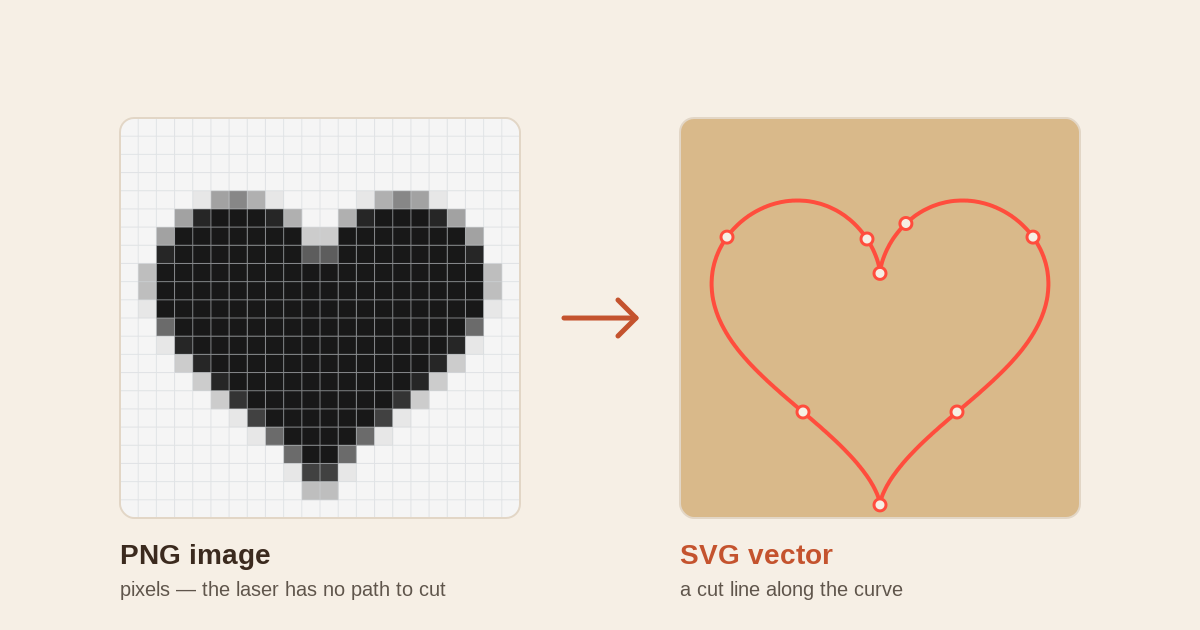
A PNG or JPG is a grid of pixels — each one only has a color. There is no information about where the edge of a shape begins and ends. Laser software can engrave such an image (the head sweeps line by line and burns the dark pixels), but for cutting it needs a path: a closed line to guide the beam along. Which vector formats (SVG, DXF, PDF) a laser reads and what is inside them: Laser file formats.
That path lives in a vector file — SVG, DXF, AI or a PDF with curves. Instead of pixels it stores points and the curves between them, so it scales with no loss of quality: the same logo cuts as a 1.2 in keychain or a 2 ft sign. Turning an image into such a file is vectorizing (also called tracing).
For how a laser cuts, scores and engraves, see Laser cutters explained: how they work and how to start.
What vectorizes well — and what does not
Works well
- logos and lettering
- line art, coloring pages, clipart
- silhouettes (animals, trees, figures)
- flat-style art from AI image generators
- clean scans of ink drawings
Not for cutting
- photos — smooth tones, no real edges
- art with shadows, gradients and texture
- tiny images from the web (a few hundred pixels)
- scans with paper shadow and noise
A photo can be engraved beautifully — it is converted to dots (dithering), not to a vector. For cutting, vectorizing a photo gives hundreds of ragged blobs that make no sense to cut.
How to prepare the image
- Resolution. The single most important thing. The contour is only as accurate as the pixels: a line 3–4 px wide gives jagged curves. Aim for at least 2000 px on the long side, ideally 3000 px. If you have less, upscale the image with AI. A plain resize only blurs the edges and adds no detail.
- Contrast and background. The shape should stand out clearly. A plain white background is ideal; shadows, grid paper or texture get in the way. If the subject is in a photo, remove the photo background first.
- PNG, not JPG. JPG compression leaves noise around edges that turns into tiny junk on the contour. If you have the choice, take the PNG.
- One color = one thing to cut. If a logo has several colors, decide which one gets cut. Vectorize the others separately or skip them.
Vectorizing step by step — free, in your browser
We will use the Plyground Vectorizer — it is free, needs no account, and your image never leaves your computer (the browser does all the work).
- Load the image — PNG, JPG, WebP or a page from a PDF file; you can also paste it (Ctrl+V). The tool picks the color to cut on its own — usually black for line art.
- Pick the color with the eyedropper. Click the image where the color to cut is — it works like GIMP's “Select by Color”: it catches every pixel of that color in the whole image, not just the connected ones. The “black” and “background color” buttons are shortcuts.
- Set contour smoothing. The slider smooths small wobbles in the edge, and the tool keeps the shape from shrinking — the size stays the same.
- Enter the width in millimeters the finished part should have (25.4 mm = 1 in). The SVG gets that size, so nothing needs rescaling in your laser software.
- Check the preview. “Image + contour” shows the cut line over the image, “Vector only” shows just the result, with the number of contours and nodes next to it.
- Download the SVG. Outer contours are red (layer C02 in LightBurn) and holes — like the inside of an O — orange (C05). That lets you cut the holes first and the outline last, so the part does not drop out of the sheet too early. Next to the SVG you can also download a ready LightBurn project (.lbrn2) or a DXF.
The contour is smooth and precise: on a reference circle 100 mm across, the average contour wobble came out at 0.011 mm (0.0004 in) — roughly 10–20 times less than the laser's kerf.
Common problems and how to fix them
| Problem | Cause | Fix |
|---|---|---|
| Jagged curves, “stairs” | Too few pixels — the line is 3–4 px wide | Upscale the image with AI to 2000–3000 px and vectorize again. The Vectorizer tells you when, with a button to the free AI Upscaler. |
| Small dots disappear (eyes, dots on i) | The speck filter removes very small blobs | Under “Advanced”, lower “Ignore specks smaller than”. The default 0.1 mm² is a dot about 0.35 mm (0.014 in) across — too small to cut cleanly anyway. |
| The contour grabs a neighboring color | Color tolerance too high | Lower the color tolerance or pick the color more precisely, inside the shape. |
| It traces the background instead of the drawing | The background color is selected | Click the drawing itself with the eyedropper or use the “black” button. |
| Letter centers fall out after cutting | Physics, not a bug: the inside of an “O” or “A” has nothing to hold on to | Use a stencil font (with bridges) or engrave the text instead of cutting it. |
Mistakes that ruin a cut no matter where the file came from — wrong scale, open contours, double lines, text not converted to paths — are covered in Laser cutting file mistakes.
What about Inkscape, LightBurn and others?
Inkscape (Path → Trace Bitmap, free) and LightBurn (Trace Image) can vectorize too. Both do well on clean artwork but need installing and tuning a few thresholds. In the browser you see the result right away, already sized in millimeters and already split into outer contours and holes. Whatever the tool, the rules are the same: good resolution, clear contrast, one color at a time.
Frequently asked questions
Is vectorizing free?
With the Plyground Vectorizer — yes: no account, no limit on how many images, no watermark. Inkscape is free too; LightBurn is paid software (with a 30-day free trial).
Which file format for a laser: SVG or DXF?
LightBurn and most current laser software read both; older RDWorks versions reliably import only DXF (and AI) — use DXF there. SVG usually keeps curves and layer colors better (DXF often turns curves into polylines), so it is handier for cutting plywood and acrylic. DXF is useful with CAD programs.
Can I vectorize a photo for cutting?
Technically yes, but you get hundreds of irregular blobs. A photo is engraved — converted to dots at a resolution matched to the laser spot — not cut.
Why does my traced contour have so many nodes?
Usually because of noise in the image (JPG compression, paper texture). Contour smoothing and a clean, higher-resolution PNG reduce the node count, and the laser cuts them smoothly anyway.